n this article we will cover the most common cause of Error Establishing A Database Connection error – misconfiguration of database access details.
Make sure that the following conditions are met:
- Database name matches the existing database name
- Username of the assigned database user matches the existing database username
- Password matches the one assigned to the specified database user
- Specified user has access privileges to the site’s database.
Database name, database username and its password can be found in the wp-config.php file located in the root directory of your WordPress installation. In order to check these details, do the following:
1. Log into your cPanel and navigate to File Manager menu: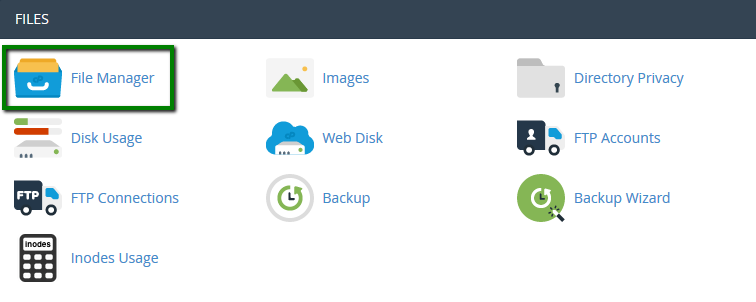
2. Move to the root folder for your WordPress installation.
3. Click on the wp-config.php file with the right-mouse button and select Edit or View option: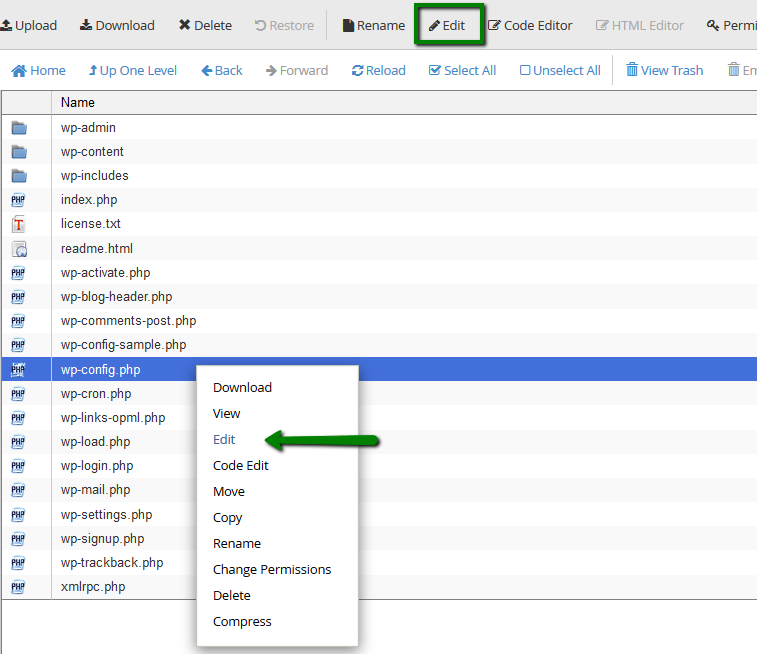
4. The file should contain the name, username and password of the database assigned to your WordPress installation: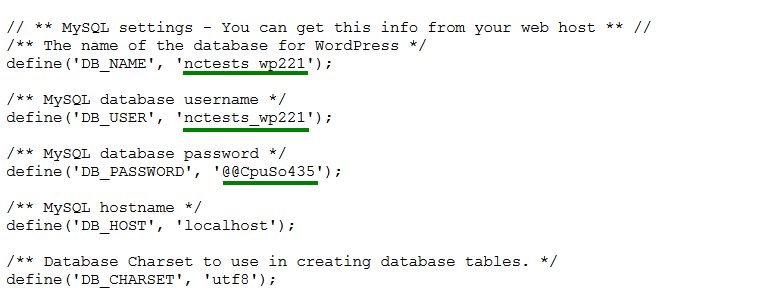
Once you have found the database details in the wp-config.php file, the next step is to check if they are correct.
5. Go to MySQL Databases in cPanel: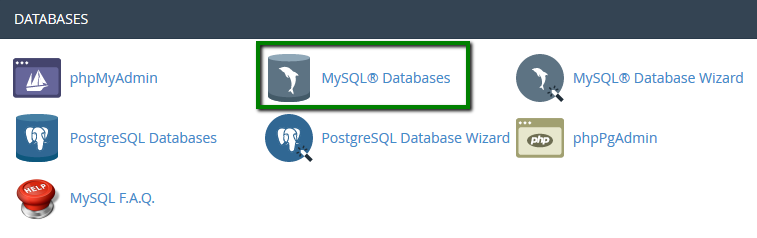
6. Carefully check if there is a database which name fully matches the one specified in wp-config.php file: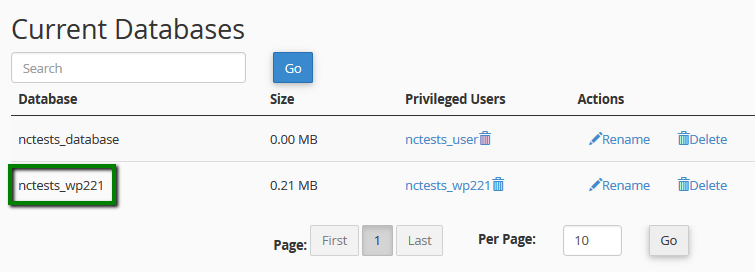
7. Then scroll down and check the database username: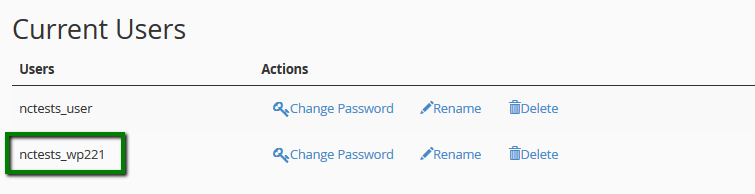
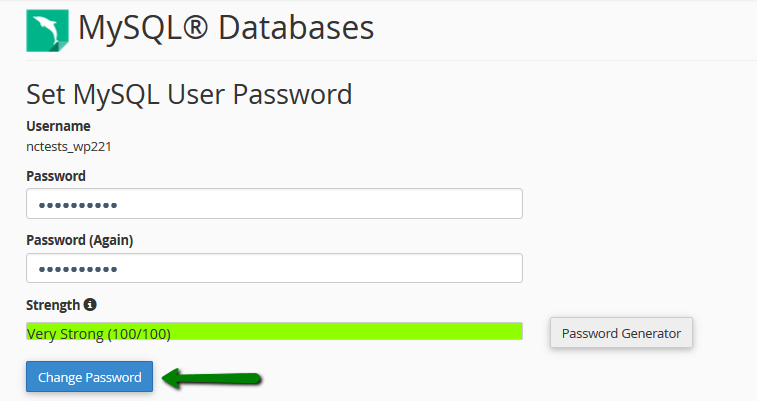
8. Set the password to the one specified in wp-config file: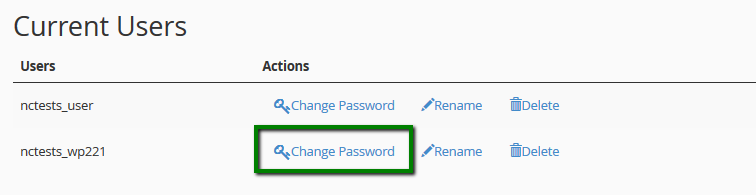
9. Lastly, it is necessary to make sure that the specified user has access privileges to the database: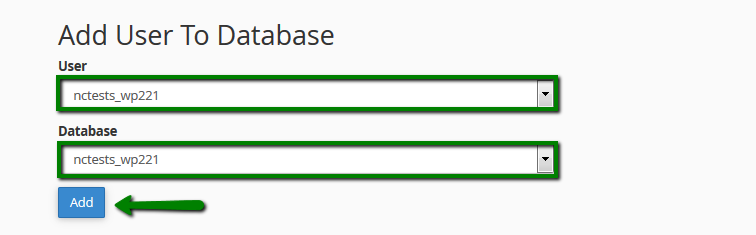
10. Click on the All Privileges checkbox and apply the changes. Once done, you will get the message stating that MySQL User has been successfully added to the Database with all privileges: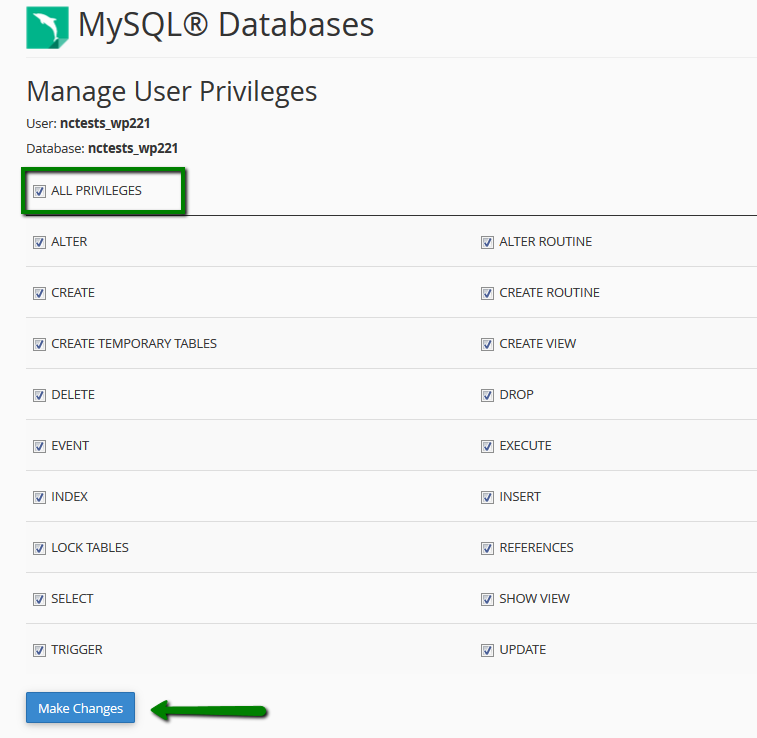
Once the database, its username and password have been changed to the correct ones, the Error Establishing A Database Connection error on your WordPress site should be fixed.
If you experience the same issue after performing the steps above, feel free to contact our support team to get further assistance with this issue.