Softaculous allows you to install and manage WordPress in a few clicks. It is not just easy to install programs by using it, it is a big time saver because it automates many tasks related to software installation. In this guide, we will show you how to log in to a website's dashboard using Softaculous.
1. Log in to your cPanel account: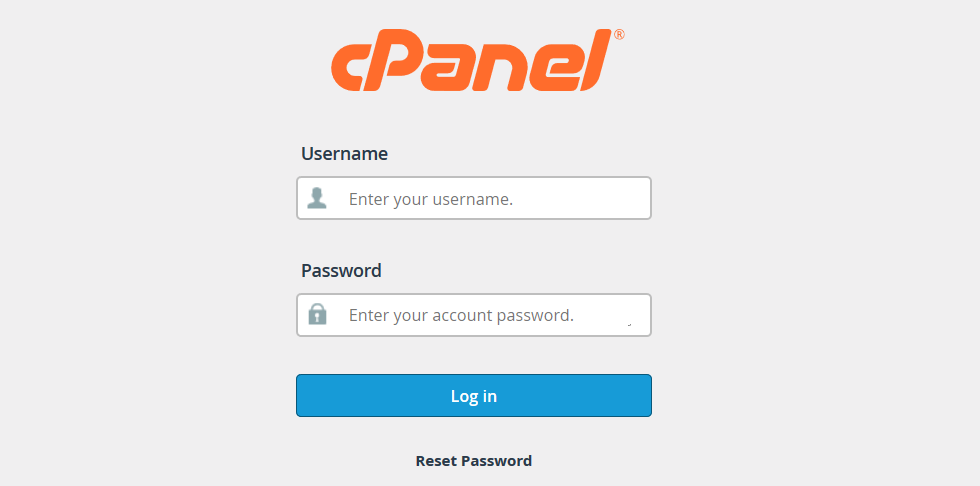
2. Scroll to the bottom of the page, find 'Softaculous App Installer' and click the WordPress icon: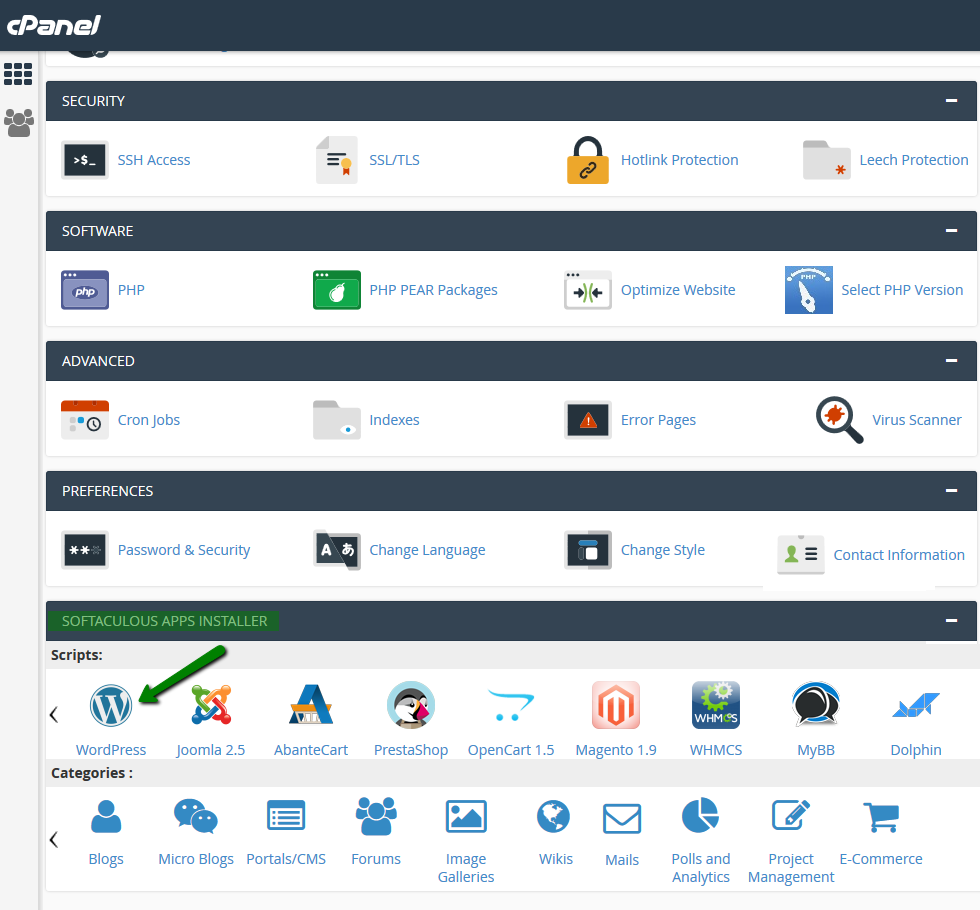
3. Navigate to All Installations menu: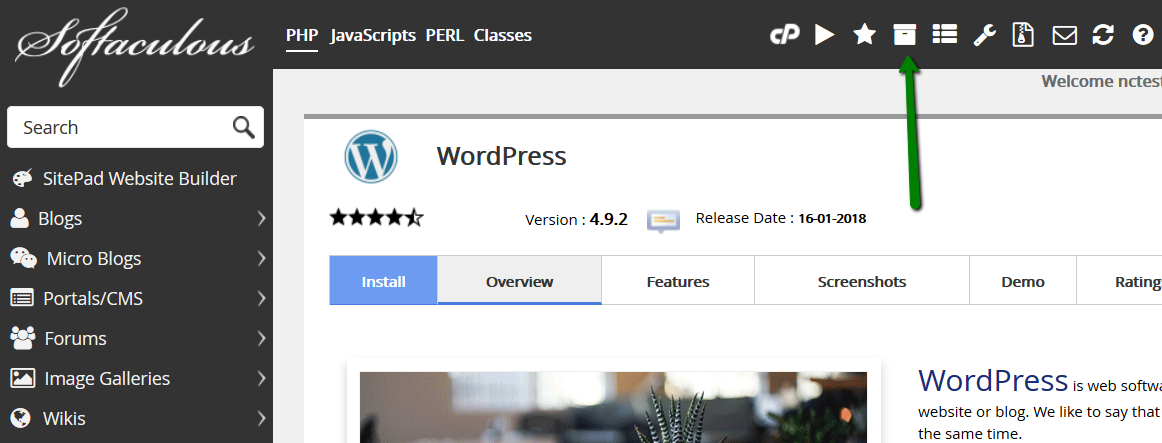
4. When working with a CMS, you'll generally need to log in to it as an Administrator. In order to proceed, click the Admin icon: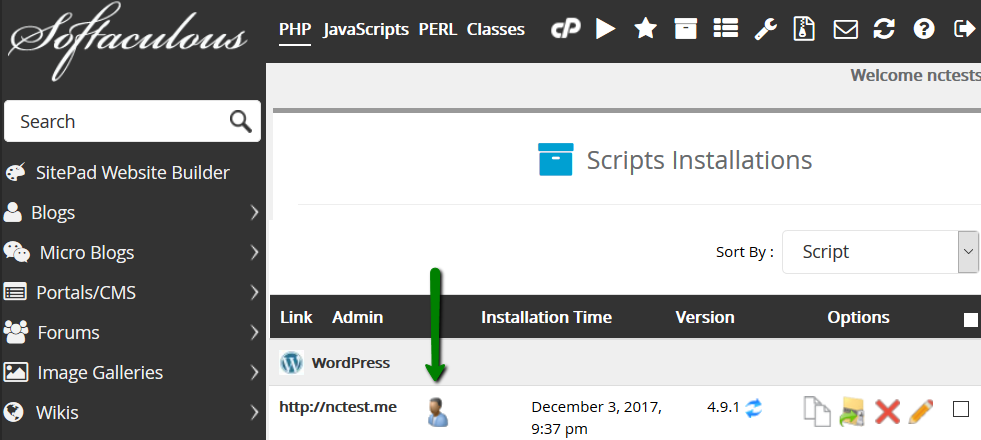
You are in. Feel free to manage your website!
How to log in to WordPress using Softaculous Print
- 1
Was this answer helpful?
Related Articles
How to install WordPress using Softaculous
Once you order hosting service, you can start creating your own website. Using Softaculous...
How to move WordPress from a subfolder
This article will take you through the process of moving your WordPress website from the...
How to reset/change WordPress admin password
There are several ways to reset a WordPress dashboard password:
On the WordPress dashboard...
How to fix Error Establishing A Database Connection in WordPress
n this article we will cover the most common cause of Error Establishing A Database Connection...
How to move a website from Squarespace to WordPress
Steps to move your Squarespace website to self-hosted WordPress include:
Installing WordPress...