It is possible to reset your account to how it was when you purchased it, so you can start from scratch. To do this, follow these steps:
- Create a backup
- There is always the chance that you may need to recover all your files. So the first step before any reset/deletion is to create a backup of your existing account.
- If you want to back up only specific websites, you can either do this using Softaculous
- , or manually in cPanel.
- Delete all your addons/subdomains
- Click on Domains under the Domains tab.
- Click the Remove button next to your addon/sub/parked domains to remove them all.

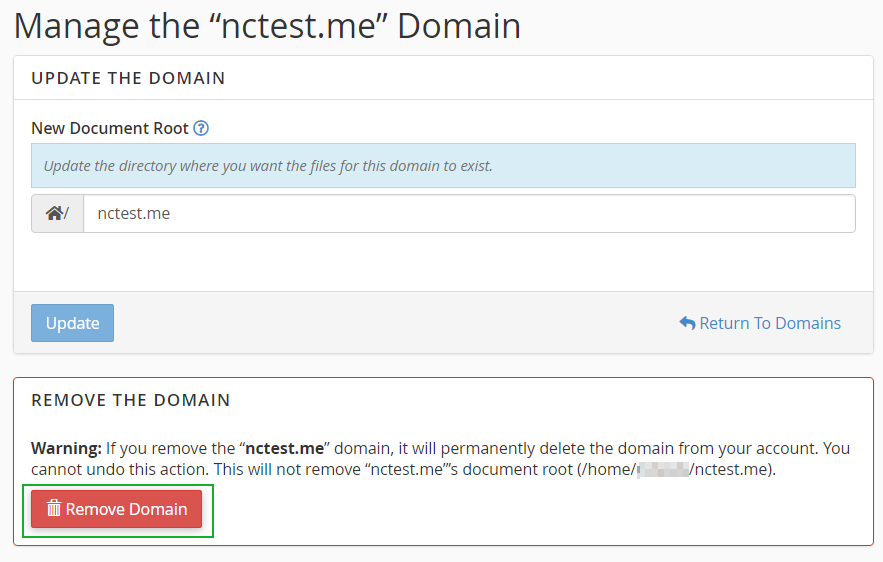
- Click on Domains under the Domains tab.
- Delete all your files
- This can be easily achieved using the
File Manager
- feature in cPanel:
- Login to cPanel.
- Click on the File Manager menu under the Files section.
- Access home, then public_html folders. In the home folder, you will see all the folders of your cPanel account. You can select the unnecessary ones (for addon domains, subdomains, etc). The public_html folder is the root folder of the main domain, which you need to delete to clear this folder.
- Click on the Select All button above the listed directories/files.
- Once they are selected, click the Delete button. Please note that you need to check the notification to remove the unnecessary files and folders without moving them to the Trash folder.
- Delete all your email accounts
We reset cPanels when errors have been made on our site, for which email accounts are not affected.
It is not necessary to delete your email addresses. However, if you want to remove these from your cPanel, you need to:
- Click the Email Accounts menu under the Email section.
- Click the Delete button next to your accounts.

- Delete all your email accounts
- Delete all FTP accounts
Click on the FTP accounts menu and then the Delete button next to all your FTP accounts.
- Delete all FTP accounts
- Delete all your databases and associated users
- Click on the MySQL Databases menu under the Databases section.
- Choose the Delete Database option next to all your databases.
- Scroll all the way down to view all your database users.
- Click the Remove button next to your users to remove them all.
- Delete all your databases and associated users
- That’s all you need to do. Now your cPanel account is the same as when you purchased it